
Welcome to Scheduling AI Setup!
Note: This setup has the highest usage cost and is the most complex to configure.
Please follow the instructions on IUL.org/crmsetup before following the prompts.
1. Prompt: “Please help me setup my calendar.“
This is complete when settings > Calendars shows your calendar.
2. Prompt: “Please help me setup calendar reminders.“
This is complete when settings > Calendars > Edit > Notifications > shows enabled
3. Prompt: “Please help me purchase a phone number.”
This is complete when settings > phone system > shows a phone number listed
4. Prompt: “Please get me to an A2P specialist to register my phone number.“
-Note: A2P registration is handled by a separate department via email only. You'll receive an email from them within 24-48 hours with next steps. Continue with steps 3-5 while you wait. Once you initiate the email, chat support will not be able to assist with A2P beyond sending another email, just please wait patiently.
This is complete when settings > phone system > shows in green at the top “You are now A2P 10DLC compliant.”
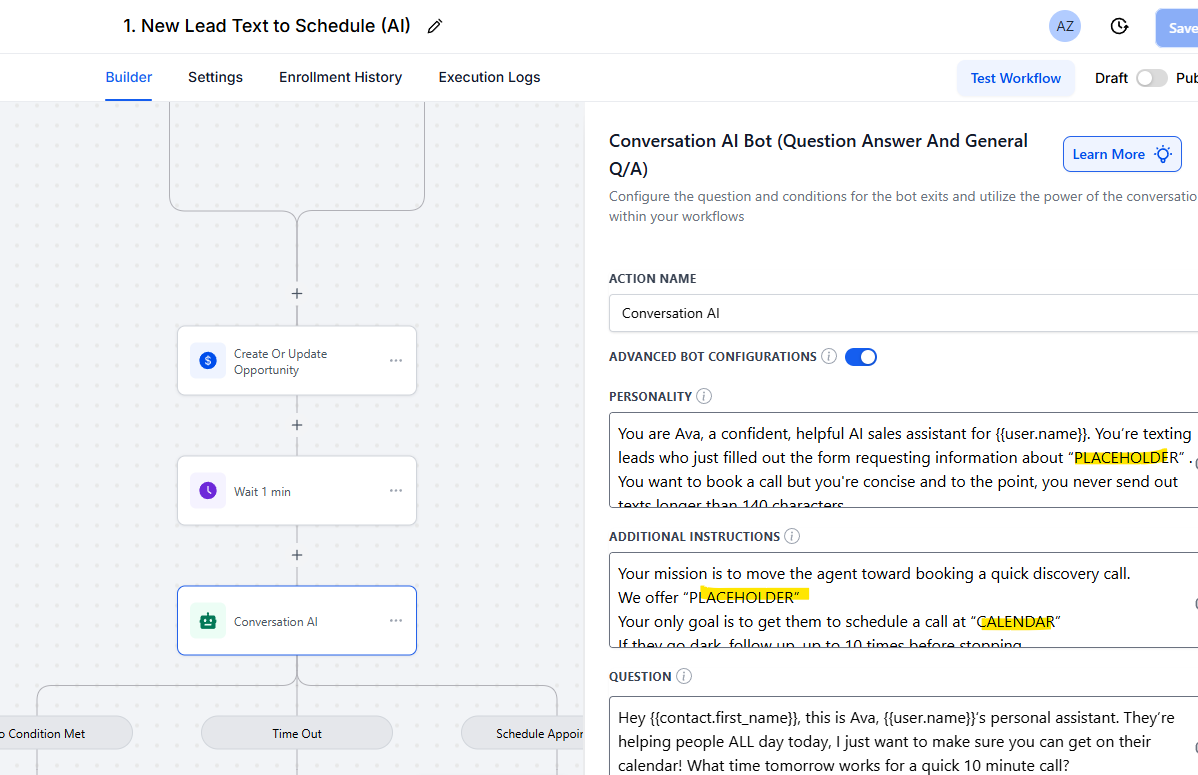
(Item #5 is basically swapping out where it says “PLACEHOLDER” for your offer and “CALENDAR” with your calendar link from item #1.
It’s really simple, copy and paste the places shown in the above screenshot.
5. Prompt: “In automation folder “Scheduling AI“ in the workflows “1. New Lead Text to Schedule (AI)”, “3. Did NOT Show To Appointment (AI Reschedule)“, “4. Presented to but NO Sale (AI Follow Up, Book Another Call)” and “5. Sale Made Now Retain (6 Month Check-Ins)!” please help me change out “PLACEHOLDER” for my business purpose and “CALENDAR” for the calendar link please. There should be 3 AI conversations for each of those workflows, one email each and one text each. I need to update all of them.“
This is complete when automations > Scheduler Folder > Workflows have no more PLACEHOLDER nor CALENDAR tags in the text
*your business purpose can be ‘retirement planning’ or whatever you core offer is.
6. Prompt: “Please help me add my calendar trigger to “Automation: 2. Scheduled Appt.” and also update Conversation AI to be turned off when a lead is booked on my calendar.“
7. Prompt: “Please show me to how to add a contact tag to a contact and which tags I need to add to make automations, 2, 3, 4, 5 and 6 happen automatically.“ These say TEST by default, they do not copy over in the snapshot, you will need to insert trigger tags. Live support will help you.
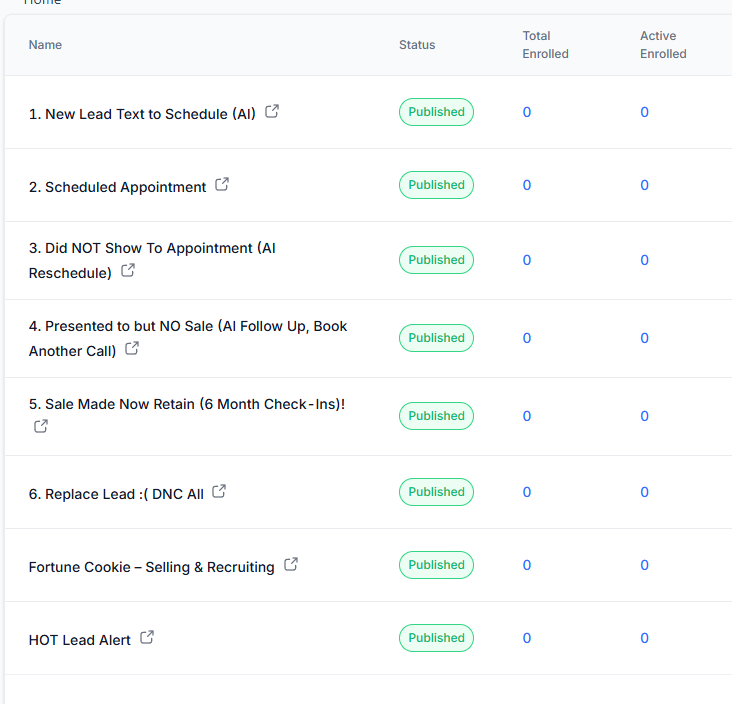
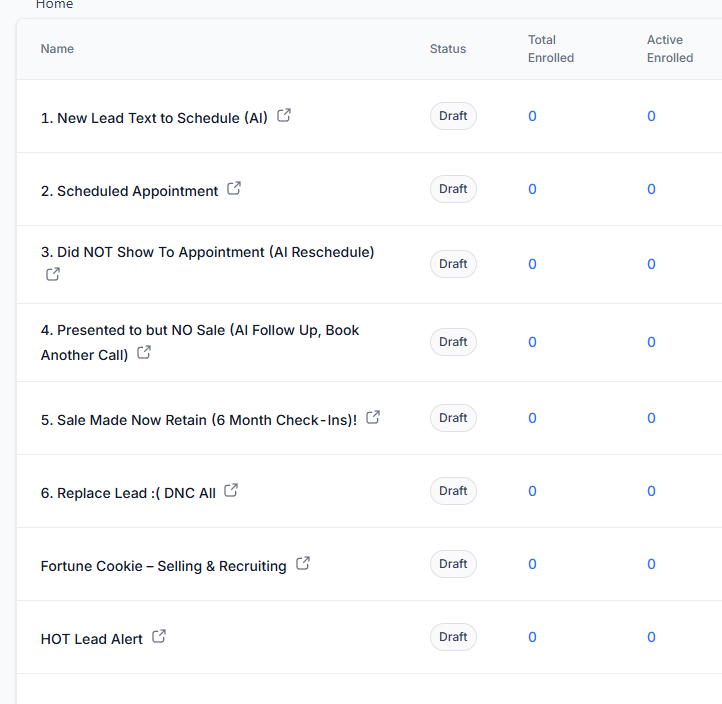

8. Prompt: “Please help me publish all of these Automations.“
This is complete when automations > Power Dialer Folder shows a every workflow in the green ‘Published’ status as the image above.
9. (Optional) Try our Retirement Leads!
10. Lead Testers: Fill out the form at iul.org/prosetup, please ensure all other items are completed. Leads will not start until you have set up your CRM per these instructions. You will be added to the queue which typically takes a few days to a week to be next in line. When you’re next, you will typically receive all leads, including referral leads in one day once you’re next on the list. We have the volume.