
Welcome to Power Dialer Setup!
Note: This setup has the lowest usage cost and is the easiest to configure.
Please follow the instructions on IUL.org/crmsetup before following the prompts.
1. Prompt: “Please help me purchase a phone number.”
This is complete when settings > phone system > shows a phone number listed
2. Prompt: “Please get me to an A2P specialist to register my phone number.”
-Note: A2P registration is handled by a separate department via email only. You'll receive an email from them within 24-48 hours with next steps. Continue with steps 3-5 while you wait. Once you initiate the email, chat support will not be able to assist with A2P beyond sending another email, just please wait patiently.
This is complete when settings > phone system > shows in green at the top “You are now A2P 10DLC compliant.”
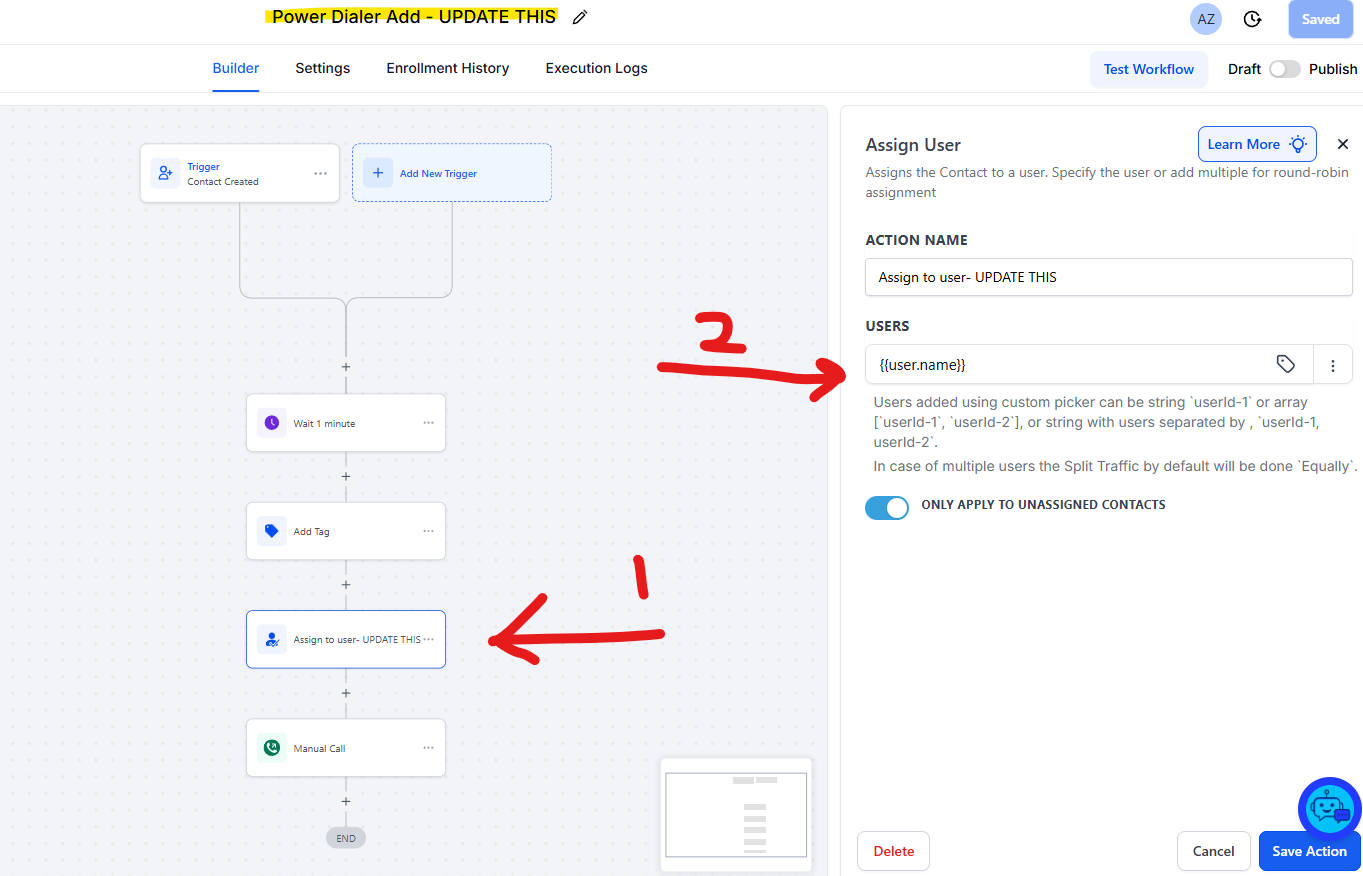
3. Prompt: “Please help me fix the assign to user action under workflow: “Power Dialer Add - UPDATE THIS” there is an assign to user action in my snapshot and I just need to make sure each lead is assigned to me as the user please.”
This is complete when automations > Power Dialer Folder > Power Dialer Add Workflow shows your name under the ‘Assign to user’ step.
4. Prompt: “Please show me how to use the power dialer”
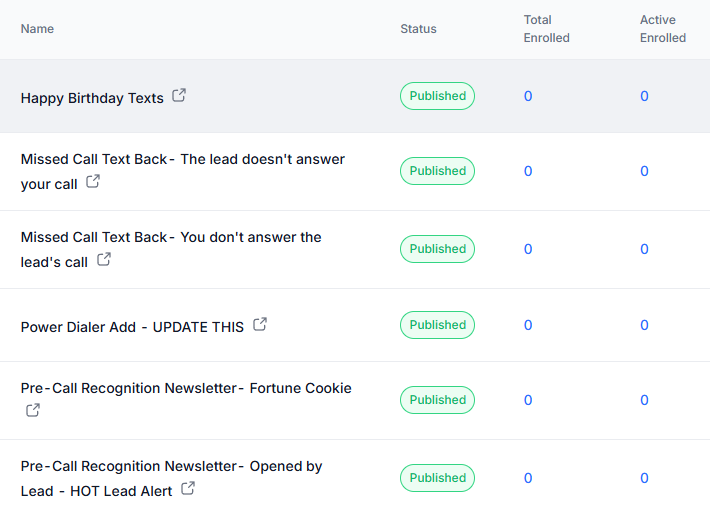
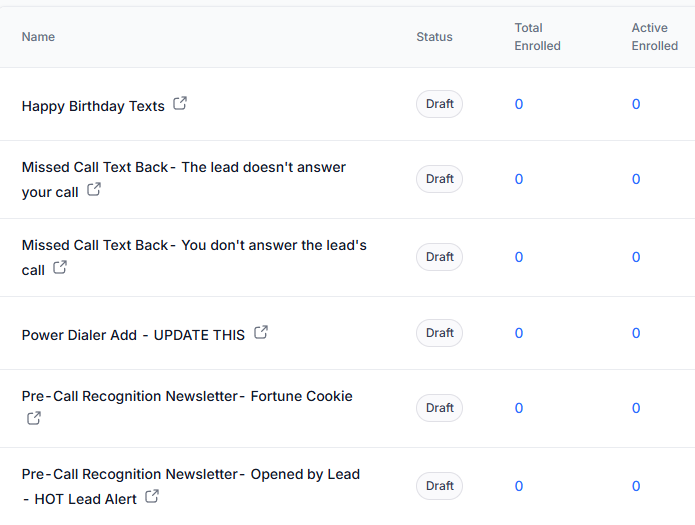

5. Prompt: “Please help me publish all of these Automations”
This is complete when automations > Power Dialer Folder shows a every workflow in the green ‘Published’ status as the image above.
6. (Optional) Try our Retirement Leads!
7. Lead Testers: Fill out the form at iul.org/prosetup, please ensure all other items are completed. Leads will not start until you have set up your CRM per these instructions. You will be added to the queue which typically takes a few days to a week to be next in line. When you’re next, you will typically receive all leads, including referral leads in one day once you’re next on the list. We have the volume.